













If you’ve spent any time building agents in Microsoft Copilot Studio using the generative orchestrator, you’ve probably run into a frustrating limitation that doesn’t get talked about enough: it forgets things mid-conversation.
Not after hours, or after dozens of turns. Sometimes after just a handful of exchanges. And the reason for this isn’t exactly clear, mainly due to Microsoft’s lack of transparency around a fundamental question: how much of the model’s context window is actually available for your conversation?.
What the Generative Orchestrator Does
For those unfamiliar, the generative orchestrator is the AI brain behind Copilot Studio’s conversational agents. When a user sends a message, the orchestrator evaluates the input and decides what to do next. It might answer directly from a configured knowledge source (RAG), redirect the user into a static dialog topic, or invoke a tool like a Power Automate flow, a connector, or MCP server tool. It’s a powerful routing mechanism – when it works.
The problem is what happens to conversational context as the orchestrator makes those decisions.
Read more: Copilot Studio’s Generative Orchestrator Has a Memory ProblemThe Memory Loss in Action
Here’s a reproducible scenario that illustrates the issue perfectly (using the default ChatGPT 4.1 model).
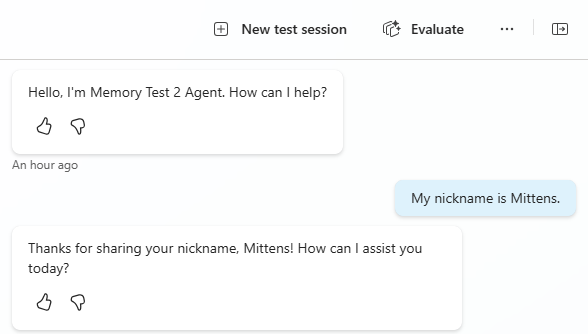
You start a conversation with your copilot and say: “My nickname is Mittens.” The orchestrator responds with something like “Nice to meet you, Mittens!” — so far, so good. The orchestrator owns the conversation, is retaining some information, and responding naturally, without having to do any retrieval, redirections to topics, or invoking any Tools or Connectors.
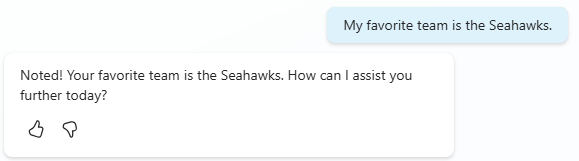
You then say “My favorite team is the Seahawks.” Again, it acknowledges this and stores it in its working context.
Now ask it something it has to think on, like “What is today?“. No problem, it answers fine.

At this point, if you were to ask it to recall your nickname, or favorite team, it should have no problem re-stating those items. But let’s not ask it to recall just yet.
Now give it a larger request, one that fills up the context window a bit, such as “Generate 500 words of lorem ipsum text.“.
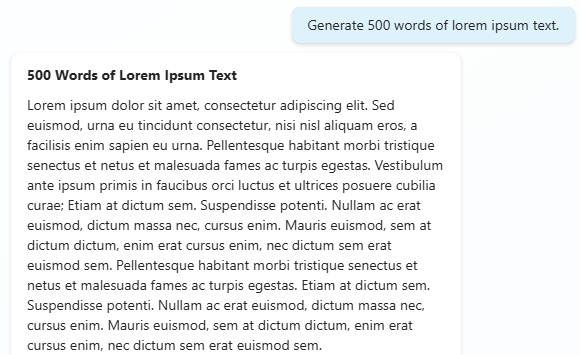
Now that the context window has been stuffed, ask it to recall your favorite team. “What is my favorite team?“
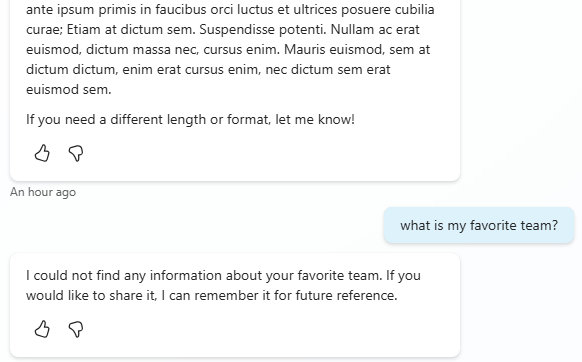
Failure. “I could not find any information about your favorite team.“. Ask it to summarize the conversation so far and it can only recall the most recent exchange for the lorem ipsum text. Everything before that has been silently discarded.
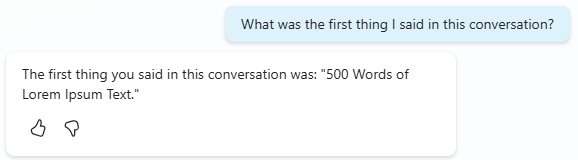
So what happened? It seems that the model generated a response large enough to consume the available context budget, and the earlier conversation turns fell off the edge.
Measuring the Gap
I tested this systematically with the ChatGPT 4.1 model, which has a 32,000-token context window, in a couple of different tenants. ChatGPT 4.1 in some regions and via the API can even have a window of up to 1 million tokens, and you would think that this is what Microsoft would be using and hosting it in Azure OpenAI service.
I established facts at the start of a conversation, then asked the copilot to generate progressively larger blocks of lorem ipsum text before checking recall. I could get it to fail consistently between 500-800 words of extra filler text, plus my initial testing facts at the beginning.
When changing the model to ChatGPT 5 (chat), the context window expanded considerably. Still, context was reliably lost after approximately 6,000 words of generated filler text – roughly 8,000 tokens.
That’s only about 25% of ChatGPT 5’s advertised 32k context window. The other 75% is being consumed by something else before your conversation history even gets a seat at the table.
I have no idea why GPT-4.1 model is significantly worse, and unfortunately for sovereign cloud clients like GCC, it is currently the only model option available.
So what’s eating the rest of the window? On every turn, the model’s context has to accommodate the copilot’s system instructions, descriptions for every configured topic, descriptions for every action and plugin, knowledge source configuration and metadata, and the orchestrator’s own internal planning prompts and scaffolding. That overhead is substantial, and it’s invisible to you as a builder. Microsoft provides no tooling to inspect how much of your context window is allocated to conversation history versus platform overhead, and no documentation on what that split looks like.
The model’s advertised context window is not what you’re getting. The effective conversation history budget in Copilot Studio appears to be in the single-digit hundreds (ChatGPT 4.1) or thousands (ChatGPT5) of tokens, regardless of what the underlying model supports. And there’s no way to see, measure, or control this from within the platform.
Is This a Cost Optimization?
It’s worth asking why the gap is so large. The orchestrator’s overhead – instructions, topic descriptions, action metadata — shouldn’t consume 75% of a 32k token window. Even a copilot with dozens of topics and actions would struggle to fill 24,000 tokens with descriptions alone.
One plausible explanation is that Microsoft is artificially constraining the conversation history window as a cost optimization. Longer context windows mean more tokens processed per API call, which means higher compute costs per turn. By limiting how much conversation history is carried forward, Microsoft reduces the per-turn cost of running the orchestrator – at the expense of conversational continuity.
If that’s what’s happening, it’s a reasonable business decision. But it should be a transparent one. Builders need to know what they’re working with so they can design accordingly, rather than discovering through trial and error that their copilot can’t remember a user’s name from five turns ago.
A Workaround That Proves the Point
The good news is that you can build a workaround. The bad news is that it requires reimplementing conversation memory from scratch – and the fact that it works actually proves something is being left on the table.
The approach involves maintaining a rolling conversation summary in a global variable and injecting it back into the orchestrator’s instructions on every turn.
Building the Transcript
Copilot Studio doesn’t expose the orchestrator’s internal conversation history to topic flows. There’s no System.ConversationHistory variable, and the Generative Answers node runs in its own isolated LLM session with no access to what the orchestrator has been tracking. So you have to build the transcript yourself, turn by turn.
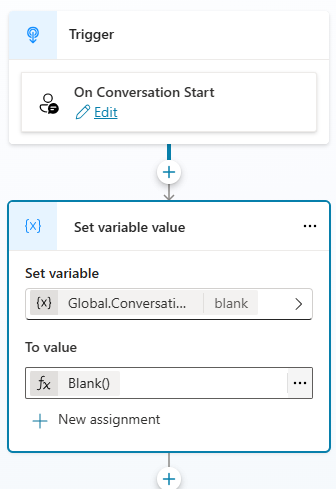
To do this, first initialize a global variable in the Conversation Start system topic, called ConversationHistory. You can set it’s initial value to Blank().
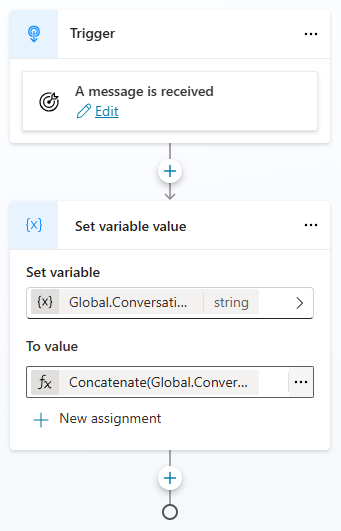
Create a new custom topic, called StoreInputHistory, and change the trigger to “A message is received“.
Add a Set variable value node after the trigger. Choose the Global.ConversationHistory variable to set, and use the following PowerFx formula:
Concatenate(Global.ConversationHistory, " | ", "User: ", System.Activity.Text)
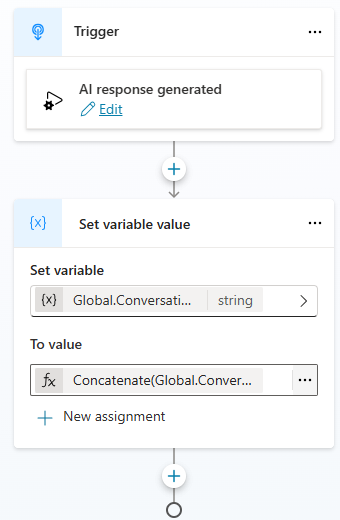
To capture the bot’s responses, create another custom topic called StoreOutputHistory, and change the trigger to “An AI generated response is about to be sent“. Also use the Global.ConversationHistory variable, and the following PowerFx formula:
Concatenate(Global.ConversationHistory, ” | “, “Bot: “, System.Response.FormattedText)
Injecting the Summary
The copilot’s Instructions field is evaluated fresh on every turn with current variable values. In the Instructions editor, add text like: “The following is a rolling summary of this conversation. Use it to maintain continuity and remember facts the user has shared.” Then type / to bring up the variable picker and select your Global.ConversationHistory variable.
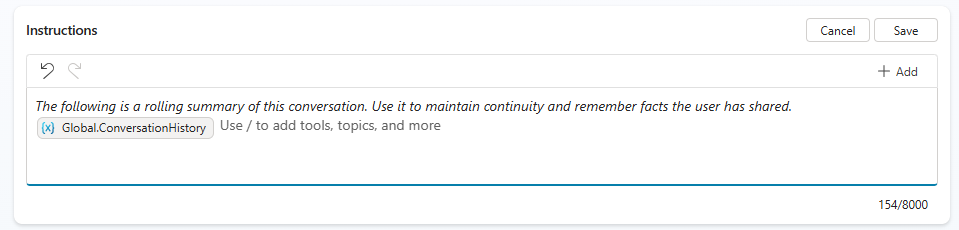
The orchestrator now sees the summary in its instructions on every turn. Even when the raw conversation history gets truncated, the key facts survive.
Why This Proves Something Is Wrong
Here’s the thing: this workaround works. After implementing the rolling summary, the orchestrator retains context across long conversations, through topic transitions, through knowledge retrievals, through large responses. The memory problem goes away.
But the summary is being injected into the Instructions – the same instructions that are part of the orchestrator’s overhead. If 75% of the context window were truly needed for the orchestrator’s internal scaffolding, adding a summary variable to the instructions should make things worse by consuming even more of that overhead budget. Instead, it fixes the problem.
This suggests that the conversation history is being truncated more aggressively than the overhead requires. There’s headroom in the context window that isn’t being allocated to conversation history, and a short summary variable is enough to fill the gap. That’s consistent with an artificial constraint on how much history gets carried forward – not a genuine space limitation.
What Builders Need from Microsoft
Copilot Studio is a powerful platform. The generative orchestrator’s ability to blend AI reasoning with structured topics and plugin actions is genuinely impressive. But that power is undermined when the orchestrator can’t maintain basic conversational continuity, and builders have no visibility into why.
What we need is transparency. Publish the effective conversation history budget for each model tier. Expose a system variable with the orchestrator’s conversation transcript. Give builders a configuration option to control the history-to-overhead ratio, even if it comes with cost implications. And if the constraint is a cost optimization, say so – let builders make an informed decision about the trade-off between cost and conversational quality.
Users expect that if they tell a bot their nickname at the beginning of a conversation, it still knows that nickname five minutes later. That’s not a power-user expectation – it’s the bare minimum. The frustrating thing is that this feels like a problem Copilot Studio should solve out of the box, without workarounds like the one above.
Until then, if you’re building anything beyond a simple Q&A bot in Copilot Studio, plan and test for memory management from day one. Your users will thank you — assuming your copilot can remember who they are.